
What hosting a Blooket game means
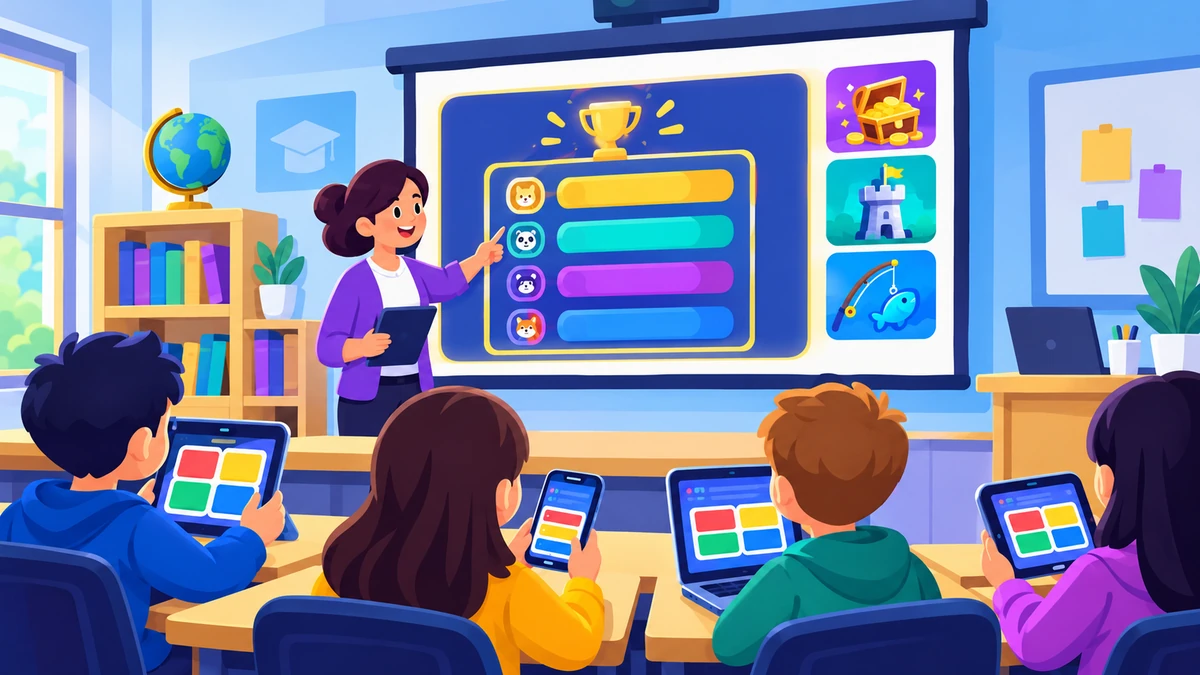
A host runs the session: the host's screen shows the game world, leaderboard, and join code, while players answer on their own devices. The official Blooket dashboard is where hosting happens; players join through play.blooket.com. Hosting needs a free account; joining doesn't. The host makes three decisions that shape the whole game — the question set, the game mode, and the lobby settings — and everything else is watching the game run.
How to host a Blooket game, step by step
- Log in to your teacher account and open dashboard.blooket.com.
- Create a question set (or open one from Discover / your saved sets).
- Press Host on the set and pick a game mode.
- Configure the lobby: player cap, late joining, random names, game length.
- Share the 7-digit Game ID or the on-screen QR code with players.
- Watch the lobby fill, then press Start when your roster is in.
That's the skeleton. The details below cover each decision — starting with the set.
Choosing or building your question set
Your set is the curriculum; the mode is the sugar. Three routes to a good set:
- Build from scratch — 15 to 25 questions works for a typical live session. Mix difficulty, and randomize correct-answer positions so patterns don't leak.
- Import from Quizlet — if your material already lives as flashcards, the importer converts it in one paste.
- Duplicate from Discover — search public sets, copy one, and edit it to fit your class. Faster than writing, and you control every question after the copy.
Sets are reusable across modes — the same review set can run Gold Quest on Friday and homework-mode Tower of Doom over the weekend.
Picking the game mode
Mode choice sets the energy. Quick guidance: Gold Quest for the safest all-class fun, Crypto Hack and Tower Defense for strategy-hungry older students, Battle Royale for end-of-class tournaments, and Tower of Doom or Cafe for homework. The full comparison lives in our Blooket Play guide and the all-12-modes breakdown.
The lobby settings that actually matter
These four options decide whether your game runs clean — treat them as your pre-flight checklist:
| Setting | What it does | Recommended |
|---|---|---|
| Player cap | Rejects joins beyond the limit | Set to roughly your roster size — bounces bot floods |
| Random names | Assigns names instead of allowing custom ones | On if your class treats nicknames as a distraction |
| Late joining | Allows players to enter after the game starts | On for long games; off for tight security |
| Game length / goal | Ends the game at a time, score, or round target | Match it to your class period, not the default |
Together these settings are also your bot defense. A capped lobby with random names and late-join off is a small target — and our 30-second flood checklist covers the worst case.
Hosting live: what to watch during the game
The host screen shows the game world plus a live view of who's answering. Useful in-the-moment habits: glance at the player list occasionally (bots or duplicate names show up here first), keep an eye on the scoreboard for runaway balance issues, and use pause if the class needs a reset. Modes with stealing — Gold Quest, Crypto Hack — benefit from a quick sportsmanship reminder before you press Start.
Hosting homework
Pick a solo-compatible mode (Tower of Doom, Cafe, Crazy Kingdom), choose the homework option, and set a deadline. Blooket generates a link — post it in your LMS or email it. Students play at their own pace before the due date, and completions appear in your reports. Homework mode is also the answer to “can I play without a live host?” for students who missed class.
Reports: where the learning data lives
After each game, the report shows per-student accuracy, per-question difficulty, and — on Plus — deeper breakdowns. The highest-value habit is checking which questions the most students missed: that's your reteach list for tomorrow, delivered automatically by the game they begged you to play.
Common hosting mistakes
- Too few questions. A 10-question set burns out in minutes in fast modes — 20+ keeps a session full.
- Default game length. Match the goal to your class period, or the game ends mid-lesson (or drags past it).
- No player cap. An uncapped lobby is an open door for bots and stray joins.
- Custom nicknames on day one. Fun later, chaos now — start with random names and relax the rule once your class earns it.
- Ignoring reports. The game is also an assessment — the data is the point.
Watch: hosting walkthrough by Blooket
Blooket's official teacher onboarding video — hosting starts around the set setup section: